With the recent influx of people using the forum, I wanted to share a couple tips about how to make posts that stand out and are easy for people to read and follow. There were a couple posts on the old forum that used to be like this that I always found useful, so I wanted to make something similar for the new forums as well.
Click on any of the arrows below for each section to see the information for each.
Markdown
Markdown is the main way you can add readability to your post. If you’re familiar with Discord’s formatting, it’s the same thing here, although you have more options available. You can also use the top bar (pictured below) when making a post to quickly add the elements that you want.

You can find a good interactive guide for Markdown here.
I’m personally a big fan of the horizontal rules, which you can add to your post by typing --- on a separate line. It’s really useful for creating “sections” in your post while keeping everything visible. Headers are useful for that as well, but if you’re just trying to split up different topics and they don’t need a title to be introduced, I tend to stick with horizontal rules.
Other Formatting Options and Special Formatting
HTML and BBCode can also be used for formatting on the forums. You can find links to the relevant information on them here. In general, unless you are trying to do very specific formatting, Markdown will probably cover most of what you need.
You can copy and paste images directly into your post, or you can upload them using the top bar. When you do, you will see something along the lines of  You can resize the image by changing the “100%” to the appropriate size you want (including making the image bigger, if you use a size above 100%). You can also change the description of the image when clicked on by changing the “image” text at the start. You can also add alt text on hover by including text in quotation marks directly after the link to the image as seen in the example.
The top bar also makes it easy to add lists, emojis ( ), and some unique formatting options. One of these options is to link directly to a Vesteria Database item, like
 Stick, which is really useful if you want to talk about a particular item and want to have everyone be on the same page about its stats, abilities, etc.
If you click the “+” sign in the top bar, you also get the option to use a bunch more formatting options. The most useful of these, and the one that you are seeing being used to break up this post, is the “Hide Details” option. This lets you create fully separate sections of a post that you can see by clicking, and makes it easier to condense your posts when they’re first opened.
You can also nest them, like this!
It’s pretty rare you’d use this though. Anyways, now that you’re here:

You can close this by clicking the arrow for the section again.
Outside of that, you may also find it useful to hold a poll in some cases. This is a nice way to end your post if you’re looking for opinions that can be condensed into a couple options.
- Yes, I already did.
- No, but I did after seeing this poll.
- No, and I’m not going to.
There are a couple other formatting things, but they would be fairly rare to be used. Please feel free to make replies about anything else you think people should know!
Quality Post Requirements
You may find that some of your posts may be unlisted (indicated by a crossed-out eye icon, see the icon on the right in the image below) and locked (indicated by a lock icon, see the icon on the left in the image below).

The most common reason this might occur is because a moderator determines that your post is low-effort. Typically these low-effort posts are one or two sentence posts that do not contribute meaningful discussion. Things like saying hi or making posts that spam the same thing over and over again might get caught under this rule.
The purpose of the forums is to provided higher quality, more structured conversation than on Discord, and make it easier for people to engage with each other on specific topics without having to deal with people randomly swapping topics half way through and having five different conversations going on at the same time.
Some tips to ensure your posts are not considered low quality:
- In general, your initial post should be at least a couple sentences long. If the topic you want to post about is not enough to have at least a few sentences worth of discussion, it probably should be on Discord instead.
- If you are making a post to get people’s opinion on a question, consider providing your own opinion on the question in the initial post, rather than just having a post with a question in the title and having the body of the post be “see title”.
- If you are making a balancing request, don’t just say that an item/class/ability/etc. is “broken”, “overpowered”, or “underpowered”, provide examples to back it up. What about it need to be balanced, specifically? What is it overpowered/underpowered compare to? Answering questions like this can help you to provide better feedback.
Note that the quality rules also apply to replies, to a lesser extent. With the code having just released, the quality rules for replies were more relaxed. However, if you are spamming the same thing in a bunch of posts, or your reply is a single word (or a couple words, essentially not making any real point), it could also be flagged for low-quality and deleted.
Necrobumping
This is less of an issue right now, because there aren’t many (non-database) posts on the forum, and it’s only a couple months old (only just being made known to most people a day or two ago though). But, just for the purposes of having it here in advance, I do want to bring up the topic of necrobumping.
Necrobumping refers to replying to a very old post, typically several months old. In general, it is highly discouraged to necrobump, and you may be flagged if you do it repeatedly.
If you want to continue a topic from a long time ago, you can follow these steps:
1. Click on the timestamp of the initial post

2. In the “Share Post” box, select the “New Topic” option
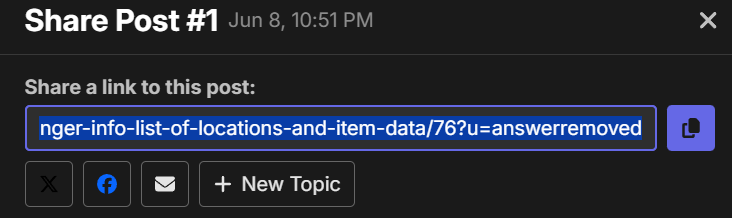
3. Create your new topic like normal, keeping the linked post
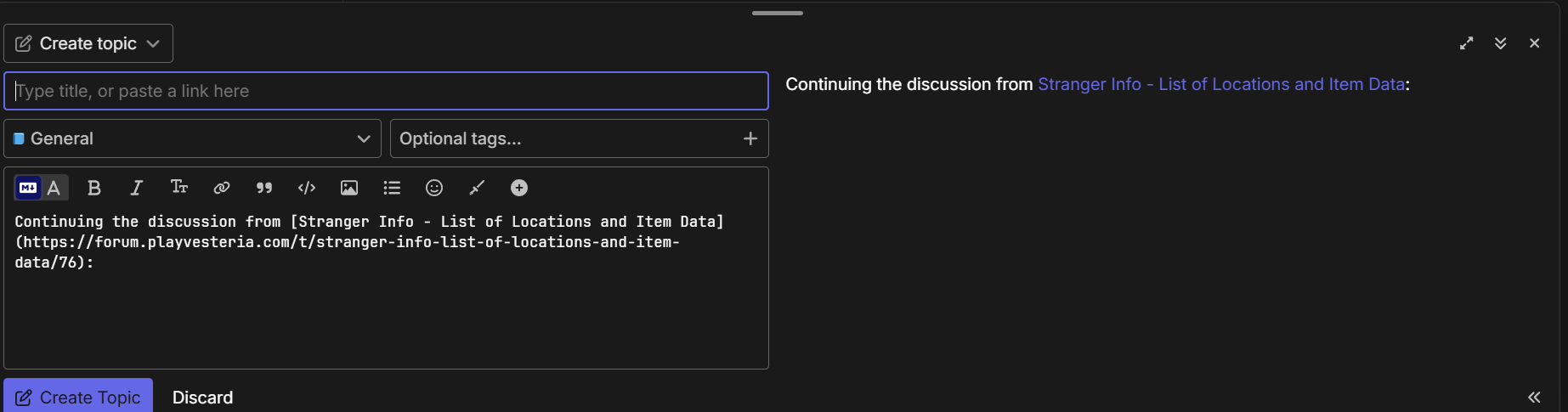
Note that the new topic will still be subject to the quality rules, so you should make sure you have enough to say about the topic to make an entirely new post. Your new post will appear below the original post as a link, so people seeing the original post can also view your post.
Customizing Your Profile
There are a lot of cool things you can do with your profile! This will go over the basics of how to customize your profile, and what you can do with it.
You can access profile customization here (this will bring you to your own profile customization page), or you can get to it through clicking your icon in the top left, then selecting the bottom icon, then going to “Preferences” and then “Profile”.
You can then add an “About Me” bio (most markdown features also work in there, although some do not display properly, like item linking), set your timezone, set a location and website, as well as add a profile header image (for when people visit your profile) and a user card background image (for when people click on your profile on posts). Note that the photos need to be both small enough in terms of file size and actual size. If you are finding that uploading a photo is not working but it is below the file size limit, you may need to crop it to a smaller size.
You can also add a featured topic. In general, you’ll probably want to set a topic that you made that you want to highlight, but you can set anyone’s topic as your featured topic if you want to promote someone else’s post.
If anyone has any other tips or advice, please feel free to share in the replies! I’m sure many other people (myself included) would be interested. Hope this guide was useful!
